
Yes. Any Xbox, PlayStation or Nintendo Switch connects to a projector with a single HDMI cable, just as it would to a TV. With the right projector and settings, you'll get a 100-inch-plus picture that is responsive enough for fast shooters and racing games.
Gaming on a projector used to mean a dim picture and noticeable lag. That has changed. Today's 4K and laser projectors are bright, sharp and fast. Many are designed with gaming in mind, with dedicated game modes and support for the 120Hz output of Xbox Series X and PS5. The picture fills your view, so open worlds feel bigger, races feel faster, and split-screen games finally give everyone room to play.
This guide covers how to connect your console, the settings that matter for gaming, what to look for in a gaming projector, and how to get sound to match the picture.
How do I connect my xbox/Playstation to my projector?
Direct to the projector (simplest)
- Plug an HDMI cable into the HDMI Out on the back of your Xbox or PlayStation.
- Plug the other end into an HDMI In port on the projector. If the projector has several, use the one marked 4K, 120Hz or HDMI 2.1.
- Select that input on the projector and turn the console on. It will detect the projector automatically.
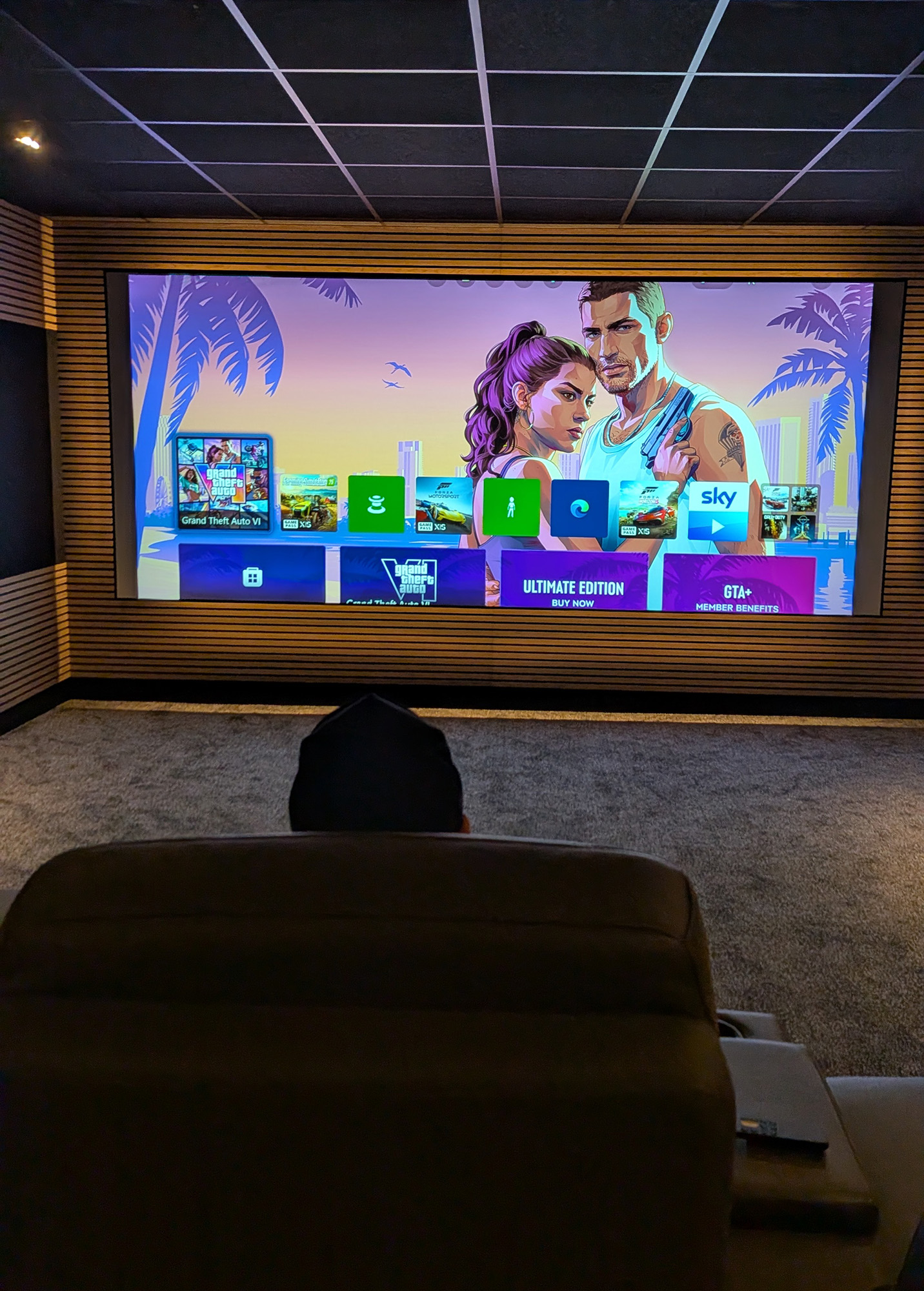
For 4K at 120Hz, use the Ultra High Speed HDMI cable that came with your Xbox Series X/S or PS5. Older cables may limit you to 60Hz. If the projector is on the ceiling and the cable run is longer than about 10 m, use an optical (fibre) HDMI cable instead. See our .
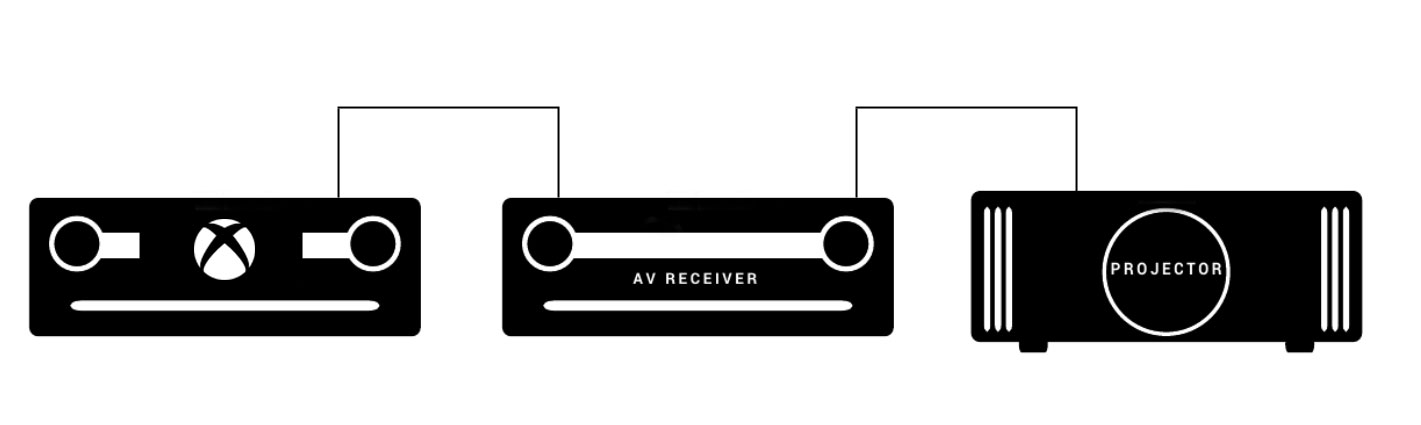
Through an AV receiver (best for sound and several devices)
- Connect the console to an HDMI In on the .
- Run one HDMI cable from the receiver's HDMI Out to the projector.
- Connect your Sky box, streaming stick and Blu-ray player to the receiver as well, and switch between them with one remote.
To keep 4K 120Hz through a receiver, it needs HDMI 2.1 inputs that pass 4K 120Hz through. If yours doesn't, plug the console straight into the projector and connect the sound separately.

What makes a good gaming projector?
Low input lag Input lag is the delay between pressing a button and seeing the result. For fast games, look for a projector rated around 16–20 ms or lower in game mode. For slower single-player games, slightly higher is fine.
4K at 120Hz, or 1080p at 240Hz Most 4K projectors accept 4K at 60Hz. A growing number accept 4K at 120Hz, which matches what Xbox Series X and PS5 can output. Some also offer 1080p at 240Hz for competitive play.
Brightness Gaming often happens in the daytime. A brighter projector, ideally paired with an , keeps the picture punchy with the curtains open.
Screen size and seating distance Bigger isn't always better for gaming. If the screen is too large for your seat, you'll be turning your head to see the map and health bar in the corners. Use our to find the right size for your room.
Projector vs TV for gaming
- Size: a 100–120-inch picture changes how open-world, racing and sports games feel, and it costs far less than a TV that size.
- No burn-in: static HUDs, scoreboards and menus can leave permanent marks on some OLED TVs. Projectors don't suffer from burn-in.
- Shared play: split-screen and party games work far better when everyone has a quarter of a 120-inch screen.
- Where a TV still wins: the lowest possible input lag and bright-room viewing. Very competitive players often keep a monitor or TV for ranked matches.
